Binding OJ Accounts with Vjudge: A Tutorial
Got stuck submitting a problem from an OJ on vjudge? Read this.
Prologue
If you use Virtual Judge (VJudge) to solve problems across multiple platforms, binding your Online Judge (OJ) accounts is essential. It lets VJudge submit code directly on your behalf and track your submissions.
Depending on the OJ's security mechanisms, VJudge allows account binding via Traditional Credentials (Username + Password) or Session Tokens & Cookies (such as JSESSIONID or refresh_token).
This tutorials walks you through both methods using Codeforces and EOLymp as examples.
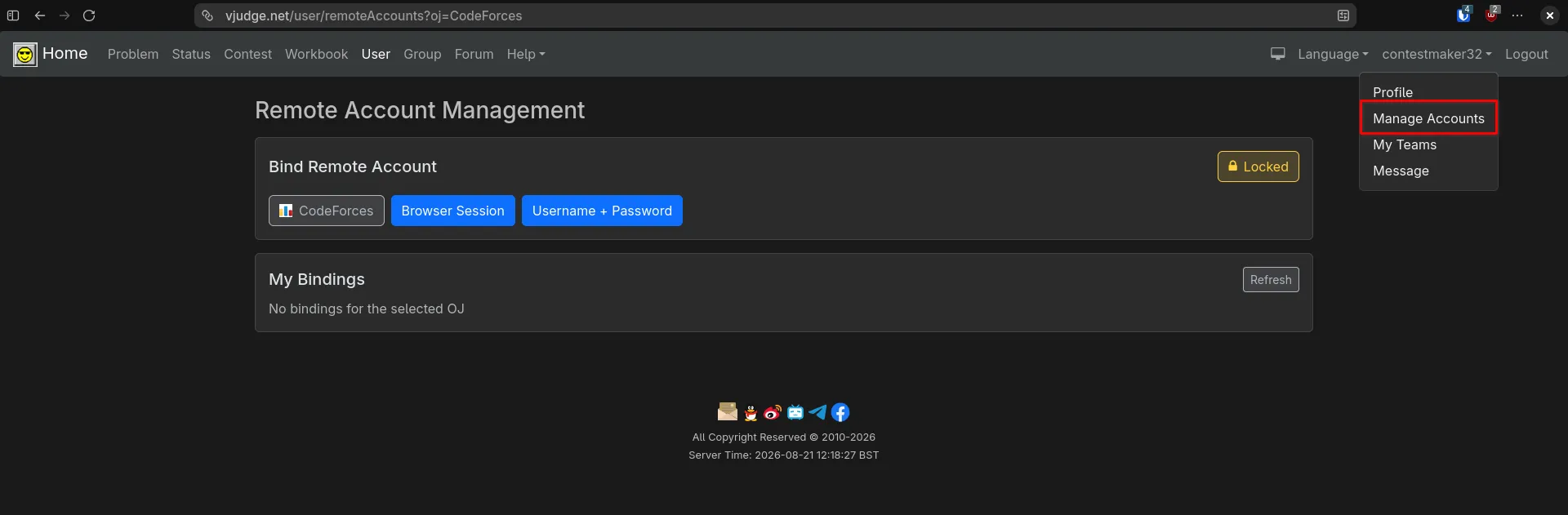
Method 1: Traditional Binding (Username & Password)
The most straightforward way to link an account is using your standard login credentials.
How It Works
When you provide your username and password, VJudge simulates a login request directly to the target OJ to obtain a session on your behalf.
Steps to Bind:
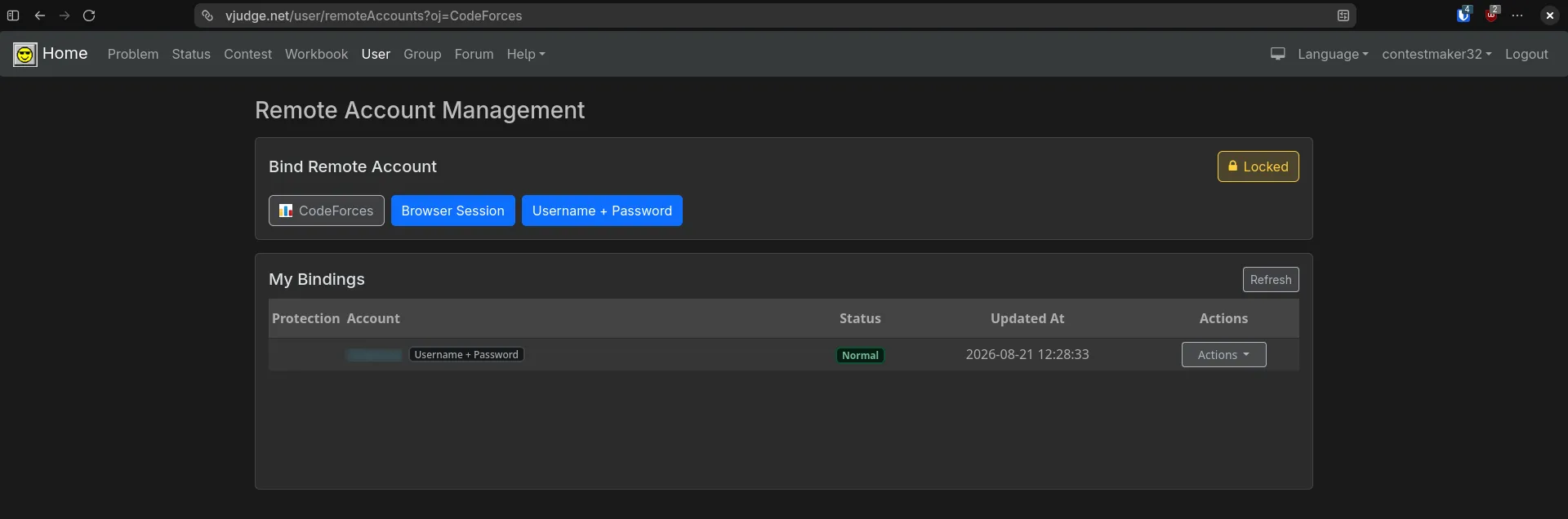
- Log into your VJudge account and navigate to Manage Accounts.
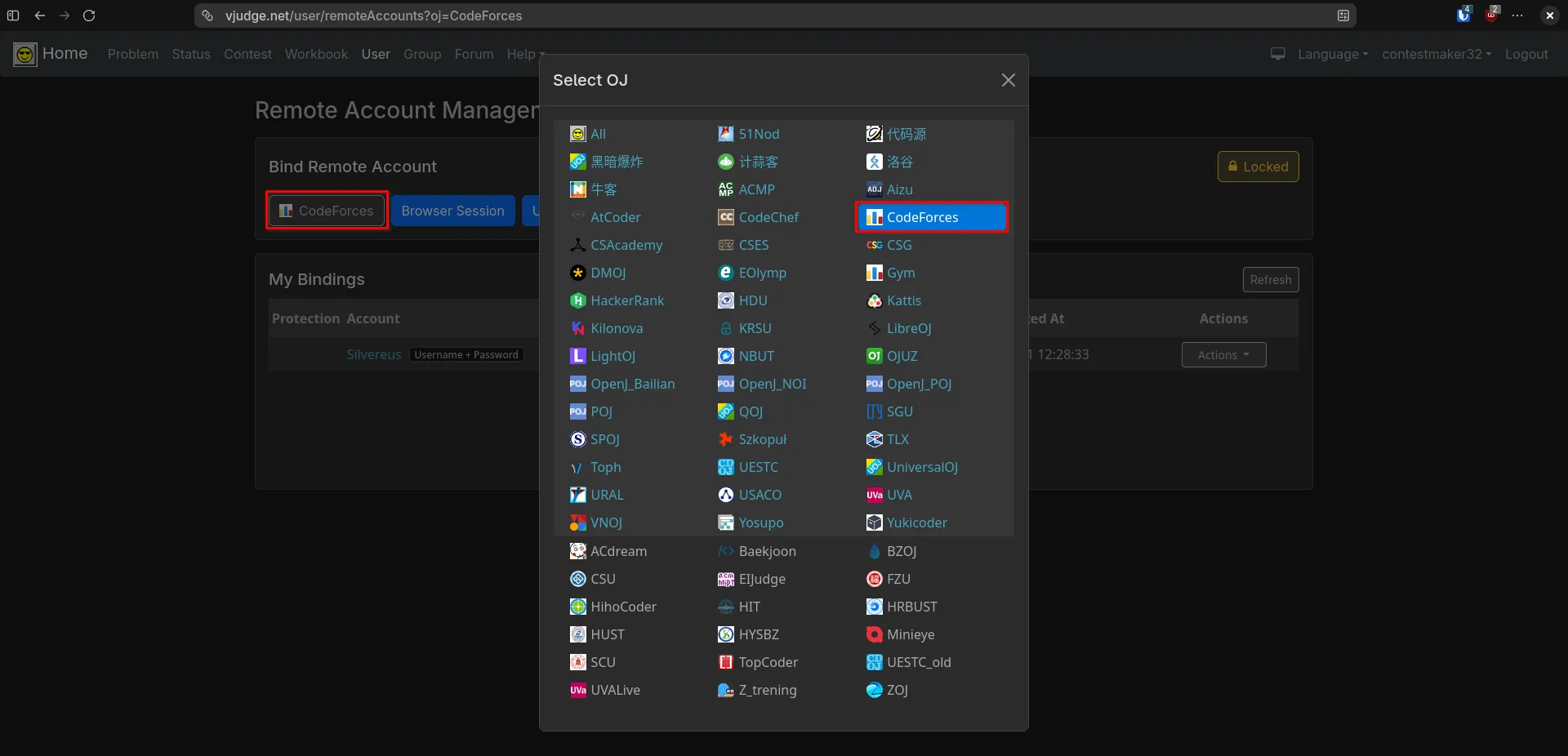
- Find Codeforces from the list.
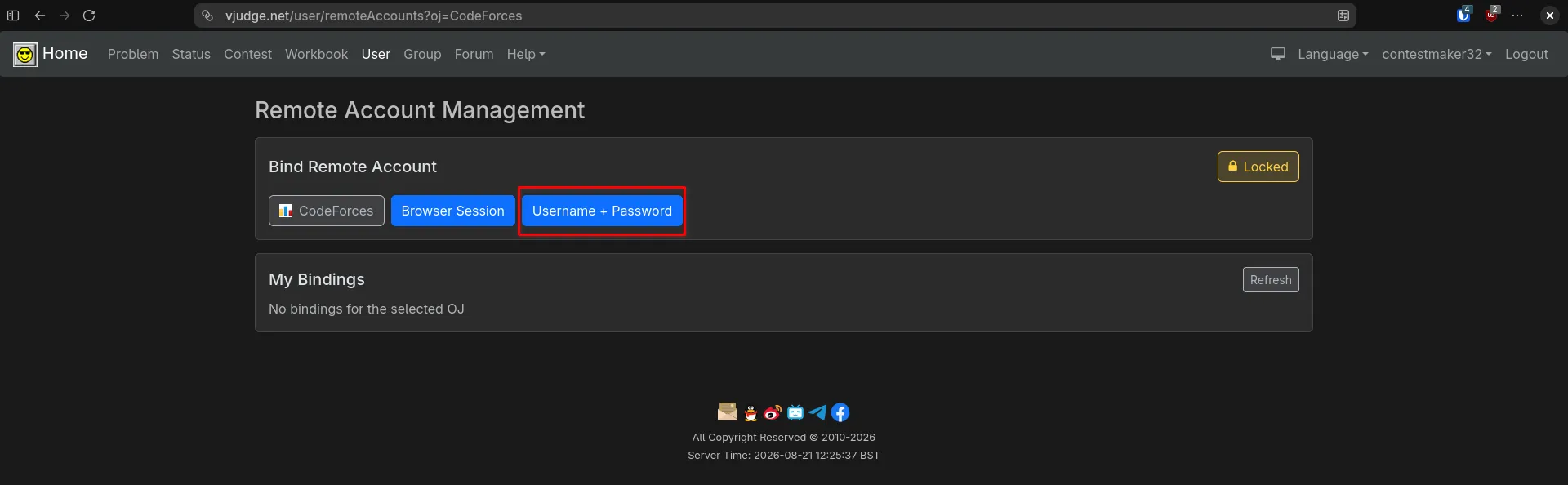
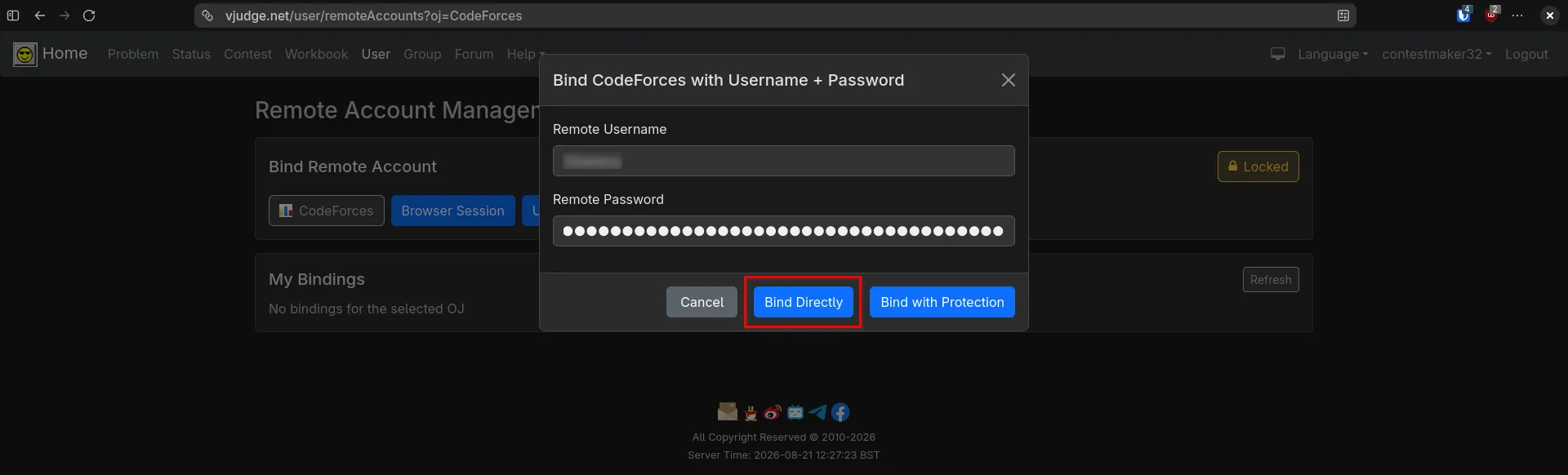
- Enter your Username / Handle and Password for CF.
- Click Bind Directly to save yourself some hassle.
Note: If an OJ implements modern bot protection (e.g., CAPTCHA on login), this method will fail with an authorization error. You must use session token/cookie binding instead.
Method 2: Token & Cookie Binding (JSESSIONID / refresh_token)
For platforms protected by Cloudflare or strict authentication protocols, entering plain passwords won't work. Instead, you extract active session cookies or tokens from your browser and pass them to VJudge. A good example is EOLymp.
Steps to Bind:
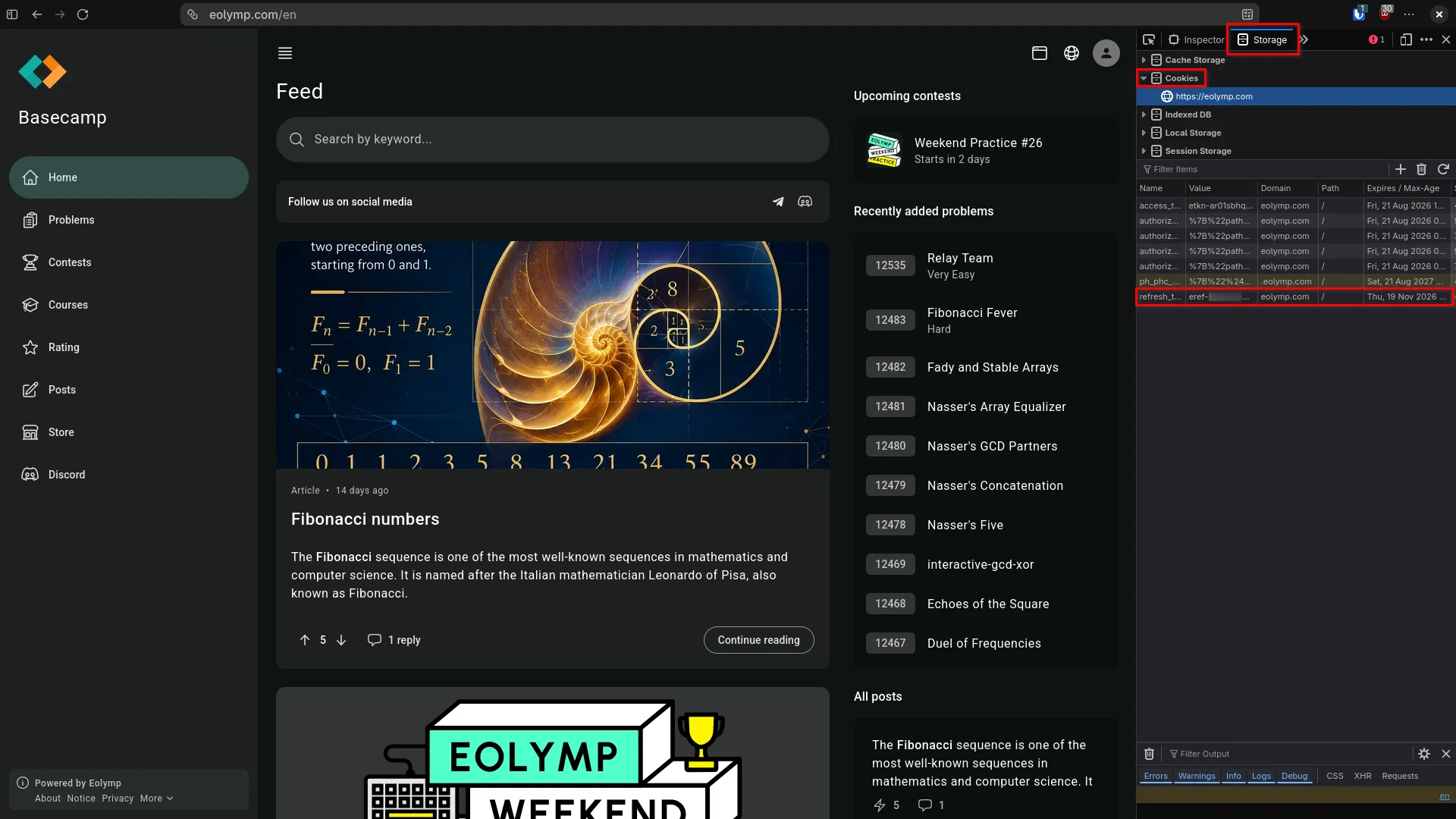
- Log into EOLymp: Open EOLymp and sign into your account.
- Open Developer Tools: Press
F12to open DevTools. - On firefox or its derivatives, navigate to Storage and expand the dropdown named Cookies. Look for a key named
refresh_token. On chrome and its derivatives, the cookies can be found under the Application tab of the DevTools. The steps are identical on all browsers but the screenshots included here are taken from a firefox based browser. - Copy the Value: Copy the full
refresh_tokenstring from the Value field (format:xxxx-xxxxxxxxxxxxxxxxxxxx...). - Paste into VJudge:
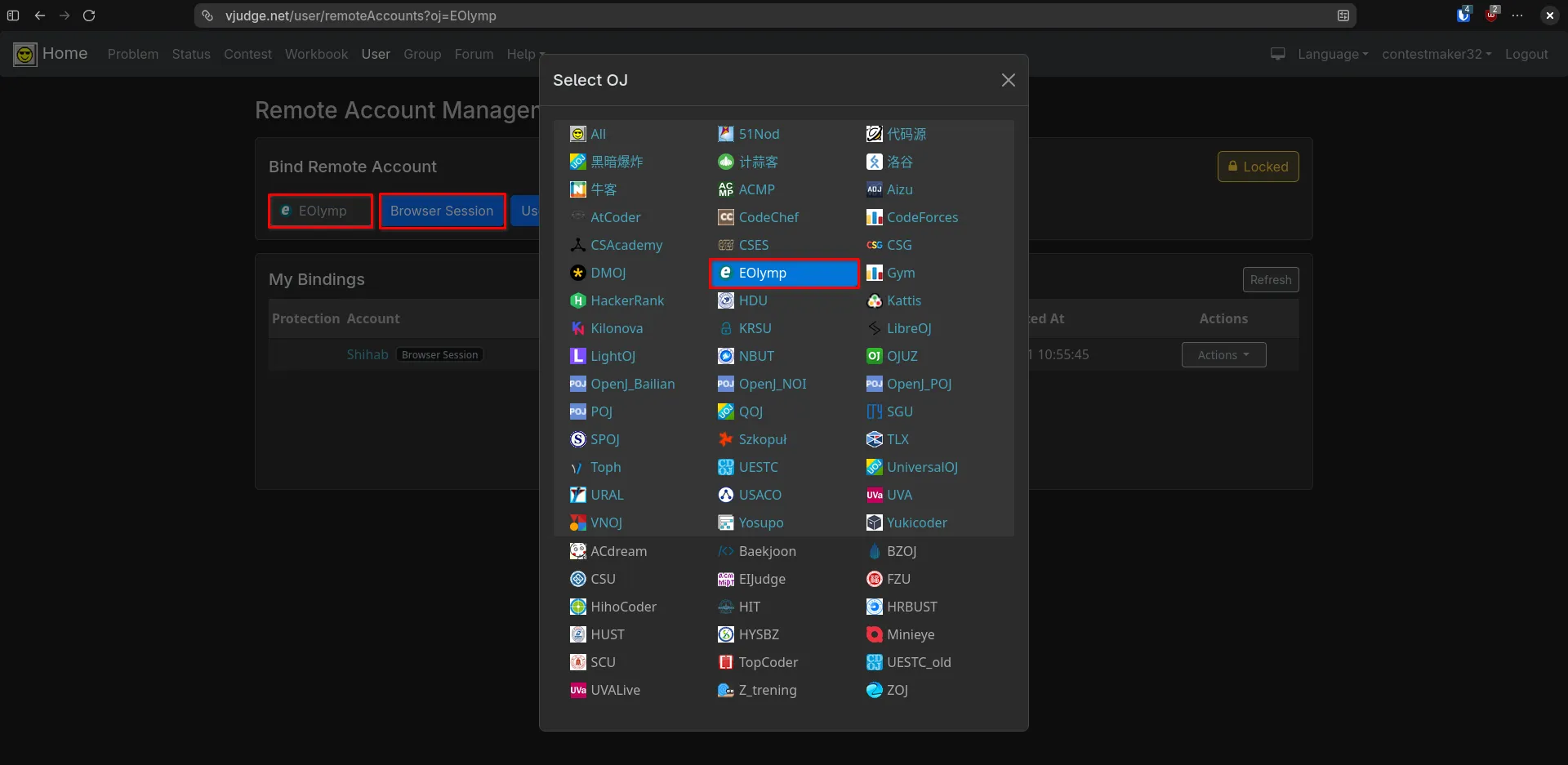
- Navigate to the same Manage Accounts page.
- Select EOLymp from the OJs.
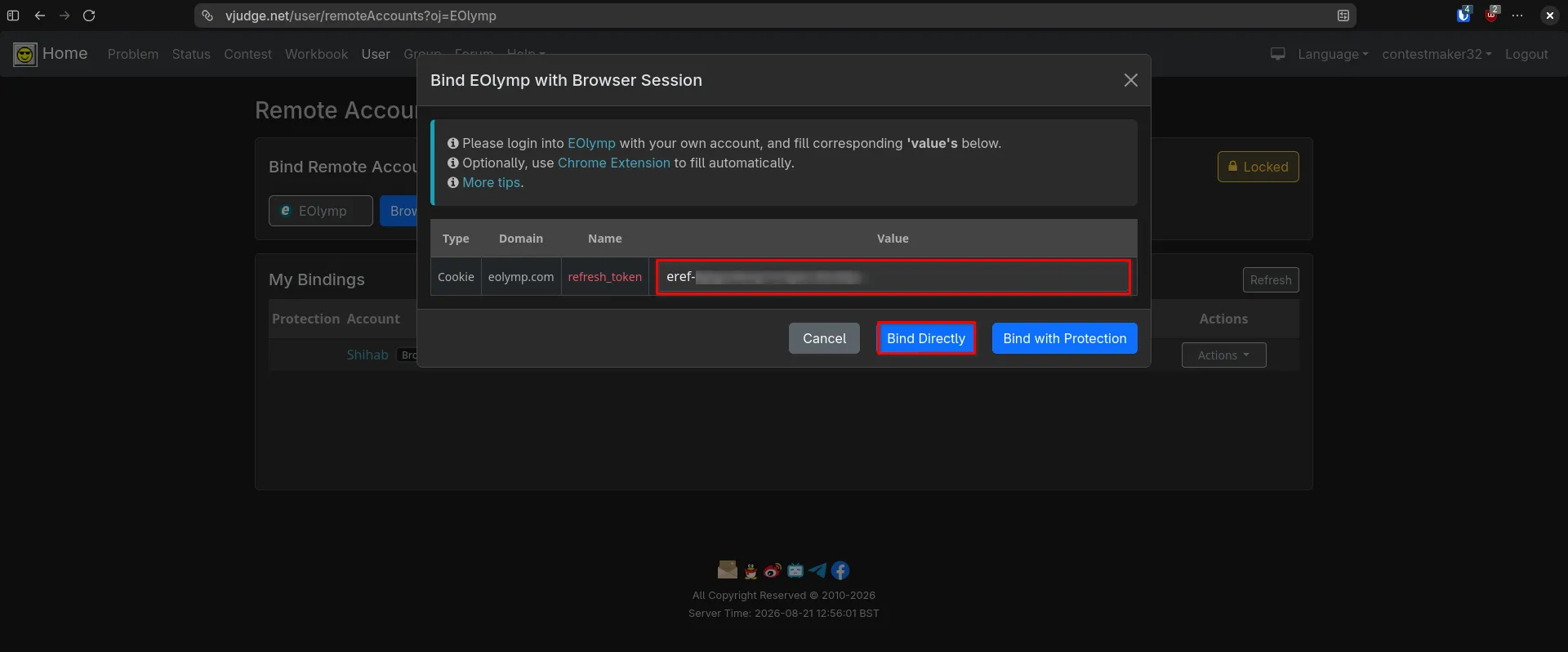
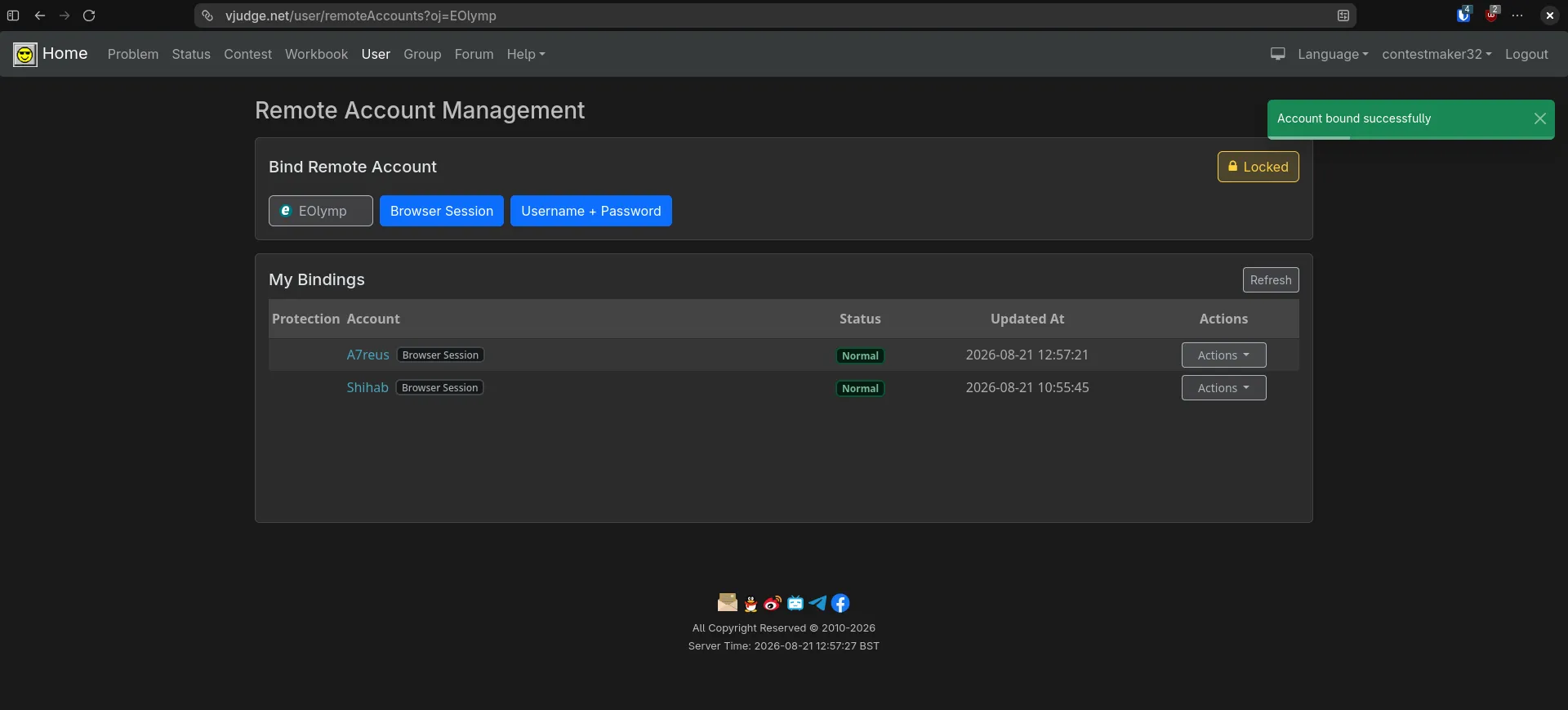
- Paste the token into the refresh_token field and hit Bind Directly.
Troubleshooting & Best Practices
- Expired Sessions: Cookies and refresh tokens expire periodically (or when you manually log out of the main site). If VJudge shows
Account Unauthorizedor fails to submit, repeat the cookie/token extraction steps. - Don't Log Out: Logging out directly on Codeforces or EOLymp invalidates the active session token instantly. Simply close the browser tab instead of clicking "Log Out".
- Security: Session cookies give full access to your accounts. Never share your
JSESSIONIDorrefresh_tokenpublicly.
// comments